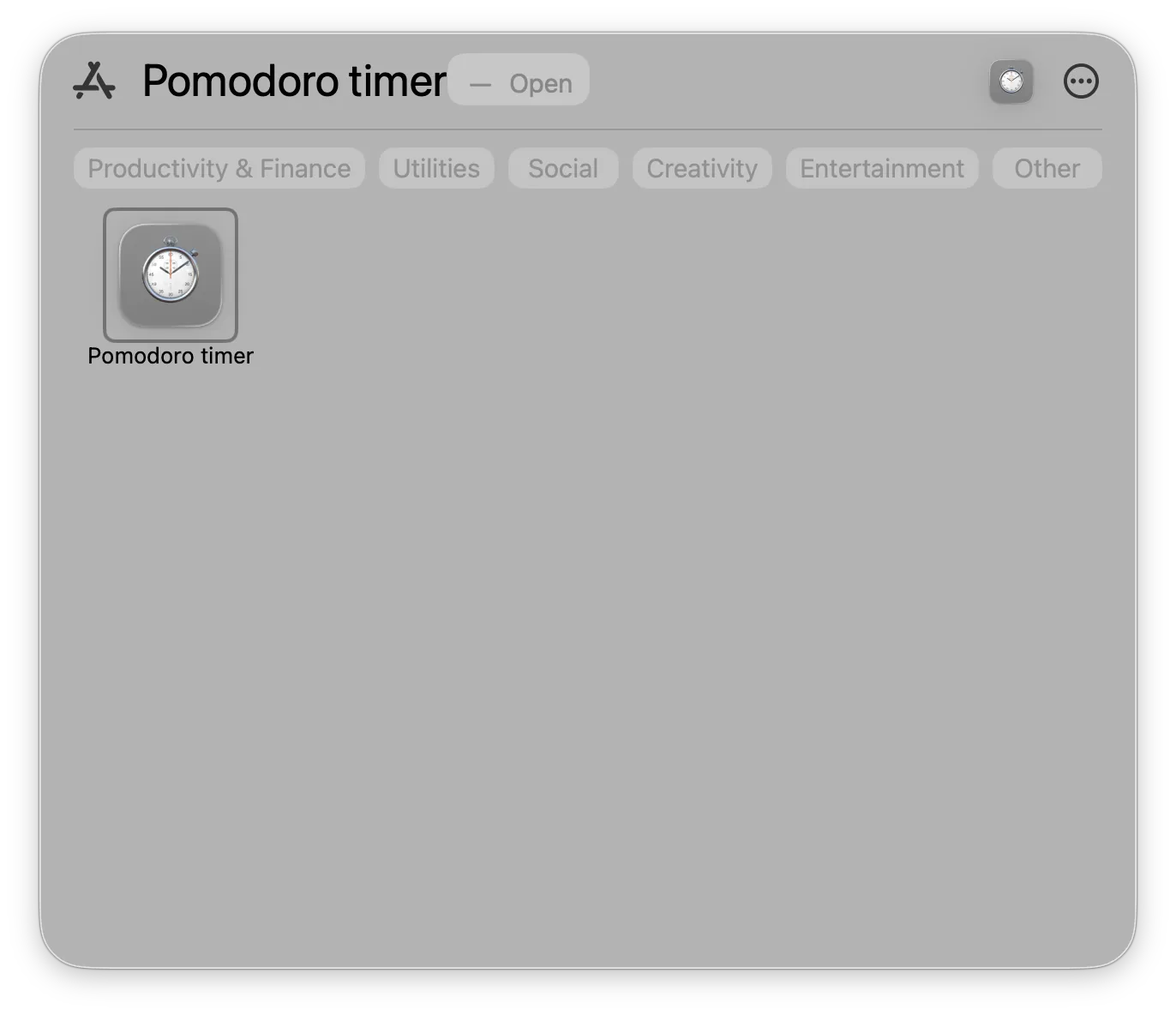

Install Your Kro App on Desktop
After creating your custom Kro App, you can access it in two ways:
Ⅰ. View Your Kro Apps
Option 1: Via the App List
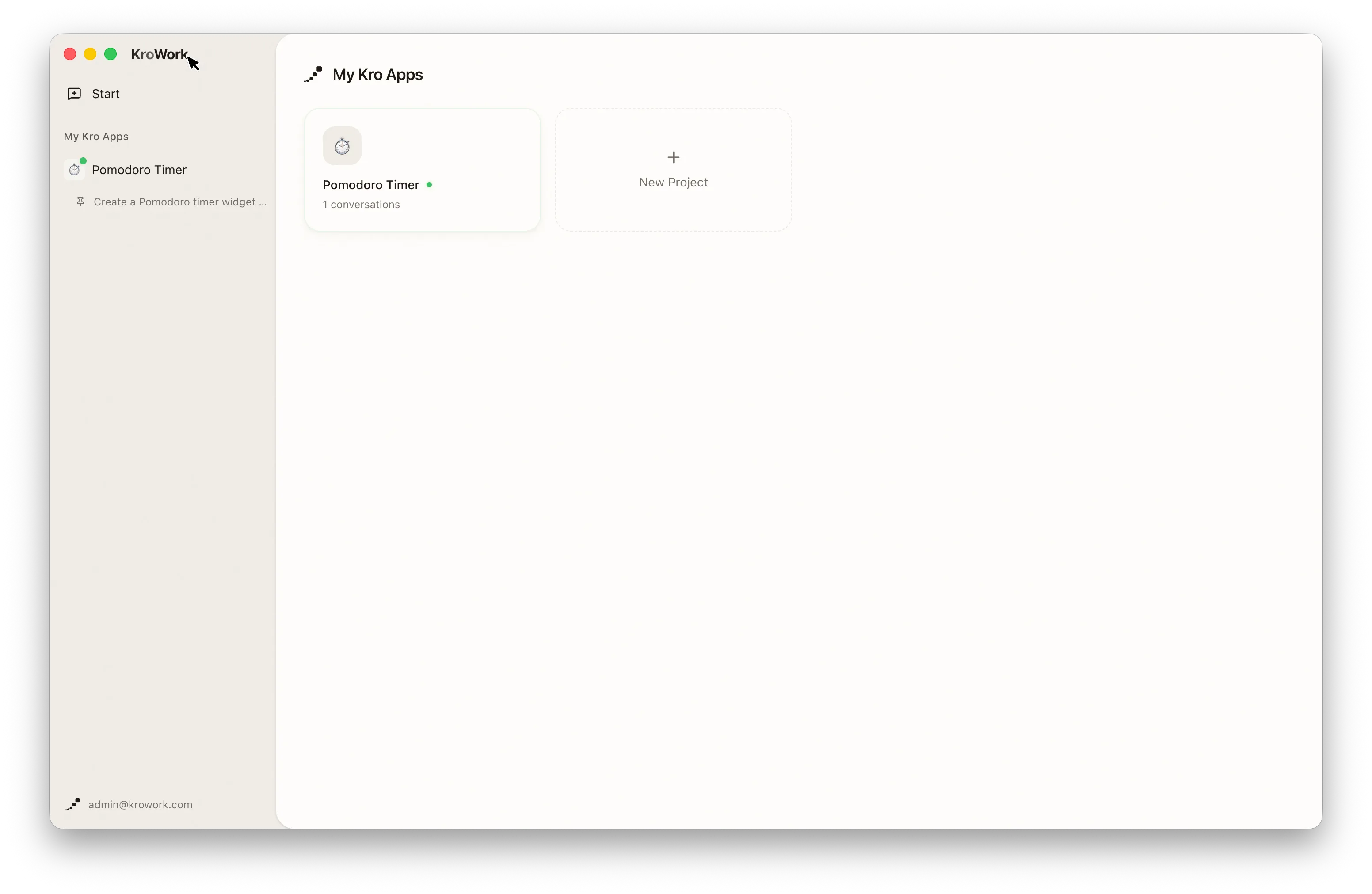
Click the KroWork title in the top-left corner to see the list of apps.
Option 2: Via the Sidebar
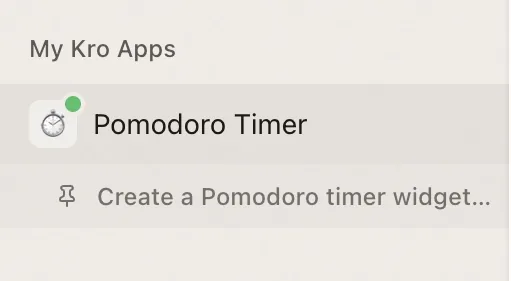
Access directly via the "My Kro Apps" in the left sidebar.
Ⅱ. Install to System App Menu
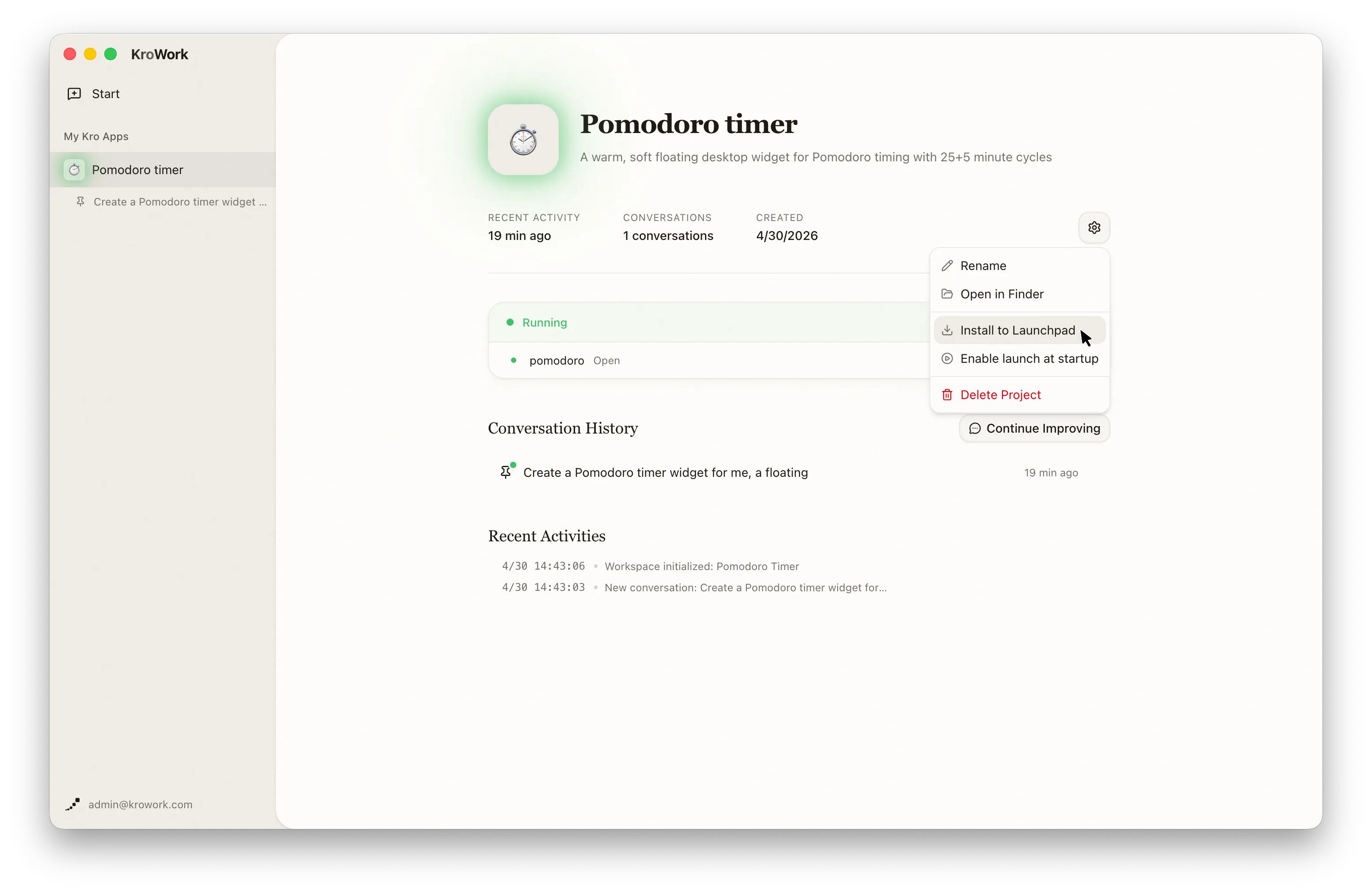
Click the gear icon, and choose "Install to Launchpad."
After authorization, the app will be installed to your system app menu. You can launch it with one click directly from the macOS Launchpad or Windows Start Menu, without opening KroWork every time.